
Import MyInvestor transactions into DonkyCapital
MyInvestor is a Spanish digital bank from the AndBank group, offering index funds, ETFs, stocks and pension plans. Learn how to export your transactions as an Excel file and centralize them in DonkyCapital alongside your other brokers.
Quick summary
- ▸Format: MyInvestor exports in XLSX (Excel) format
- ▸Path: Inversiones → Operaciones y consultas → Consulta de operaciones
- ▸Button: click "Descargar" to download the file
- ▸Import: upload the XLSX in DonkyCapital and select MyInvestor
MyInvestor is a popular platform for passive investors in Spain. Exporting your transaction history lets you analyze performance independently, compare against benchmarks and get a full picture of your overall wealth across all your brokers.

Why export your data from MyInvestor?
- Independent performance analysis (TWR, IRR, drawdown)
- Consolidated view with other brokers or banks
- Dividend and corporate action tracking
- Offline backup of your full transaction history
Why use DonkyCapital for portfolio tracking?
DonkyCapital consolidates all your brokers in a single dashboard. You can import from MyInvestor, DEGIRO, Scalable Capital, Trade Republic and many more, then view your overall portfolio performance with professional-grade metrics.
- Unified dashboard across all your brokers
- Automatic TWR and net-of-fees return calculation
- Dividend tracking with integrated calendar
- Asset Allocation and geographic diversification analysis
- Price alerts and market event notifications
Step 1: Export your transaction history from MyInvestor
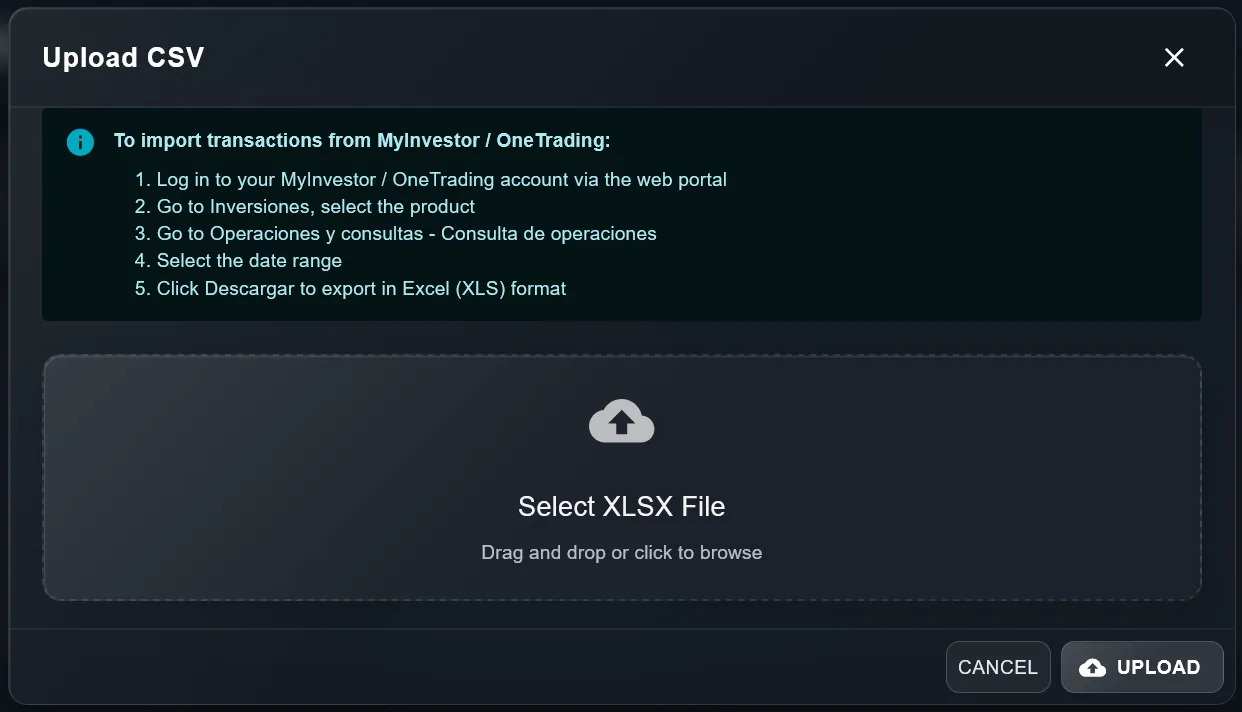
- Log in to your MyInvestor account via the web portal (not the mobile app)
- In the side menu, go to "Inversiones" and select the product you want to export (funds, stocks, ETFs…)
- Navigate to "Operaciones y consultas" then "Consulta de operaciones"
- Select the date range you want to export
- Click the "Descargar" button to download the file in Excel (XLS/XLSX) format
💡 Tip: if you have multiple products (funds + ETFs + stocks), repeat the export for each one and upload each file separately in DonkyCapital.
Step 2: Import the XLSX file into DonkyCapital
- Sign in to your DonkyCapital account
- Click the "Import transactions" button
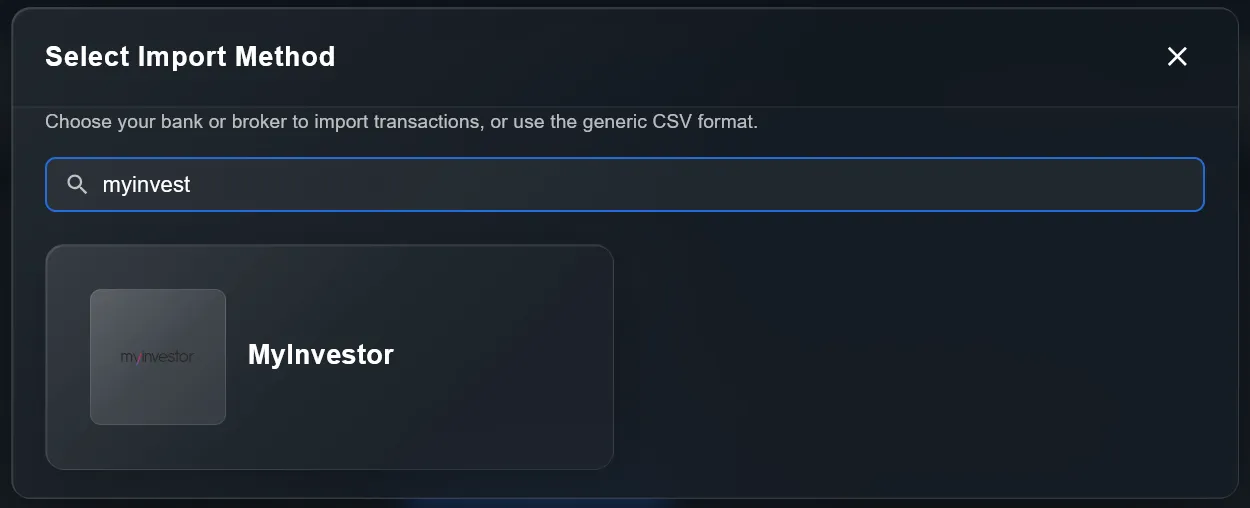
- In the import method selection modal, search for "MyInvestor" or "myinvest"
- Select MyInvestor from the list and proceed
- Upload the XLSX file you exported from the MyInvestor web portal
- Confirm the import — transactions will be added to your portfolio automatically
💡 Upload the original XLSX file from MyInvestor as-is. Do not modify the file before uploading.
Frequently asked questions
Does MyInvestor export in CSV or Excel format?
MyInvestor exports in Excel format (XLS/XLSX). DonkyCapital accepts this format directly without any conversion.
Can I export only a specific date range?
Yes. On the "Consulta de operaciones" screen you can set a custom date range before clicking Descargar.
Do I need to export each product separately?
Yes. If you hold funds, ETFs and stocks in MyInvestor you will need to repeat the export for each product type. Each XLSX file is uploaded separately in DonkyCapital.
Is my data safe with DonkyCapital?
DonkyCapital never stores your MyInvestor credentials. The process is entirely manual: you only upload an XLSX file that is already downloaded to your device.
Can I combine MyInvestor with other brokers?
Yes. DonkyCapital lets you import from multiple brokers and view all your assets in a single consolidated view.
Ready to take control of your investments?
2-minute setup. No commitment. Cancel anytime.
Get Started Free - No Card Required