
How to Import Your Trading212 Portfolio into DonkyCapital
Trading 212 is one of Europe's fastest-growing commission-free brokers — but its built-in analytics stop at basic P&L. This guide shows you how to export your Trading 212 transaction history as a CSV and import it into DonkyCapital to unlock professional portfolio analytics: real TWR returns, dividend tracking, benchmark comparison and multi-broker consolidation.
TL;DR
- ▸Export: open Trading 212 → click your username top-right → History → export icon → set date range → download CSV.
- ▸Import: upload the CSV to DonkyCapital — transactions are matched and parsed automatically.
- ▸Dashboard: see your real TWR return, P&L, dividends and asset allocation in one view.
- ▸Multi-broker: consolidate Trading 212 with Degiro, Revolut, Scalable Capital and more.
Why Export Your Trading 212 History?
Trading 212 offers a great entry point to investing, but its built-in reports don't calculate Time-Weighted Return, compare performance against a benchmark, or show a consolidated view if you have accounts with multiple brokers. Exporting your transaction history gives you full ownership of your data and lets you analyse it in a more powerful tool.
- Get your real Time-Weighted Return (TWR) — not just the P&L shown in the app
- Compare your portfolio performance against a global benchmark like MSCI World
- Track dividends and project future income with a calendar view
- Consolidate Trading 212 with other brokers in one unified dashboard
- Keep a permanent, portable record of all your transactions
Your Trading 212 CSV is your complete trading record — DonkyCapital reads it directly so you never need to enter transactions manually.
Why Use DonkyCapital with Trading 212?
DonkyCapital adds the analytical layer that Trading 212's app does not provide:
- True Time-Weighted Return (TWR): your real performance isolated from cash flows
- Benchmark comparison: compare your portfolio against MSCI World, S&P 500 or a custom index
- Dividend calendar: see upcoming dividend payments and track income growth year by year
- Multi-broker consolidation: combine Trading 212 with Degiro, Revolut and others in one view
- AI Portfolio Analysis: get automated insights on concentration risk and diversification
- Privacy-first: no Trading 212 login required — just upload the CSV file
Step 1: Export Your Transaction History from Trading 212
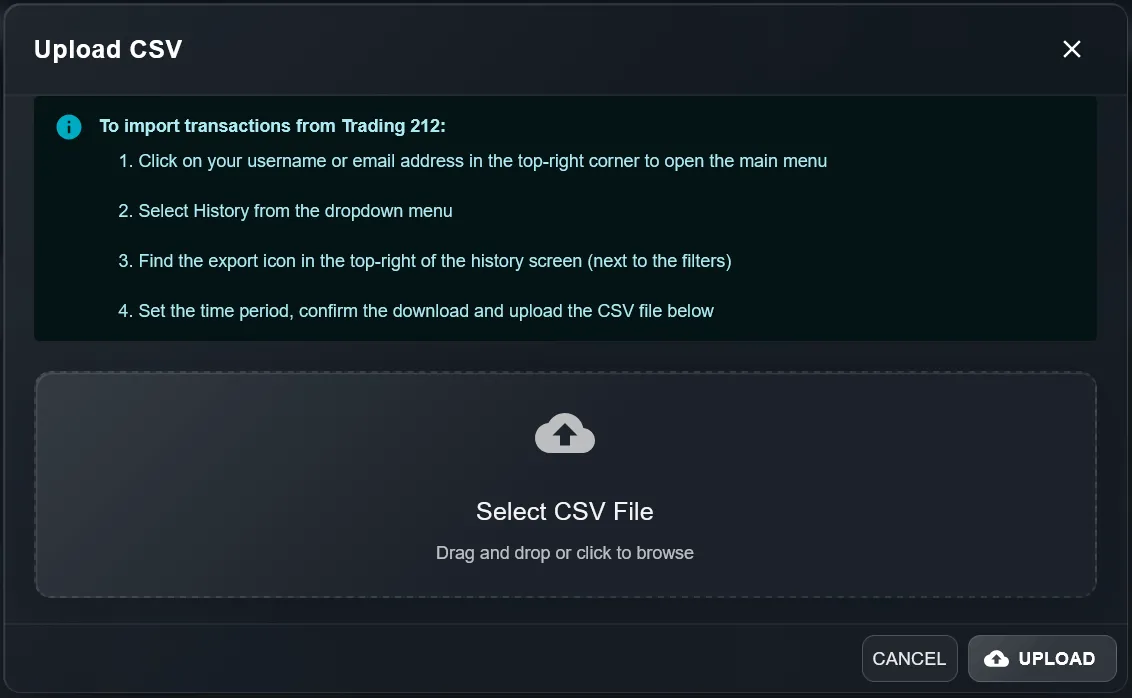
- Open the Trading 212 app or web platform and log in
- Click on your username or email address in the top-right corner to open the main menu
- Select History from the dropdown menu
- Find the export icon in the top-right of the history screen (next to the filters)
- Set the time period to cover your full trading history
- Confirm the download — a CSV file will be saved to your device
Tip: select the widest possible date range to export your complete history in one file. If you have been investing for several years, export all of them — DonkyCapital handles multiple imports and deduplicates automatically.
Step 2: Import the CSV into DonkyCapital
- Log in to app.donkycapital.com
- Go to Portfolio → Import
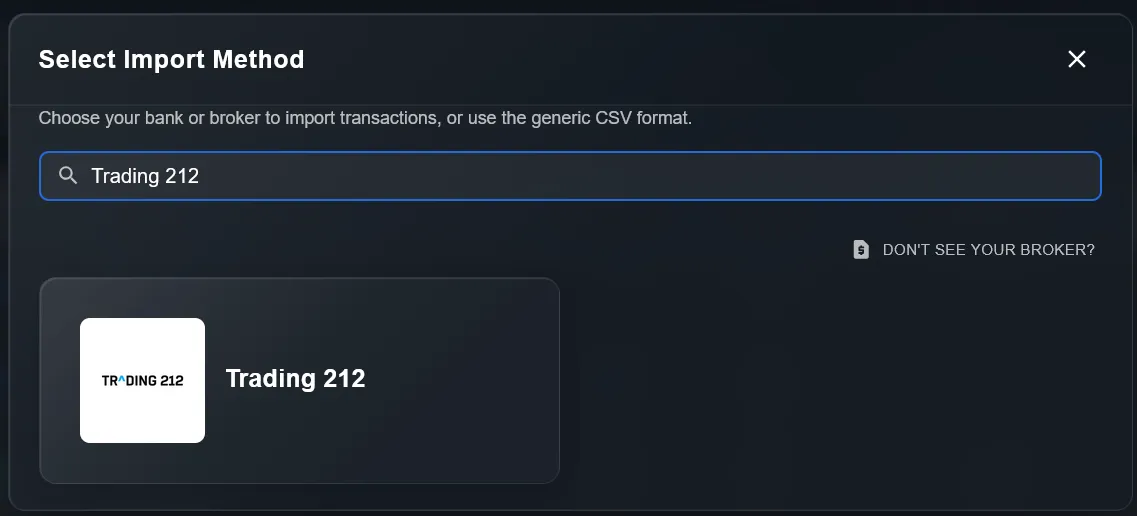
- Search for Trading 212 and select it from the broker list
- Upload the CSV file you downloaded from Trading 212
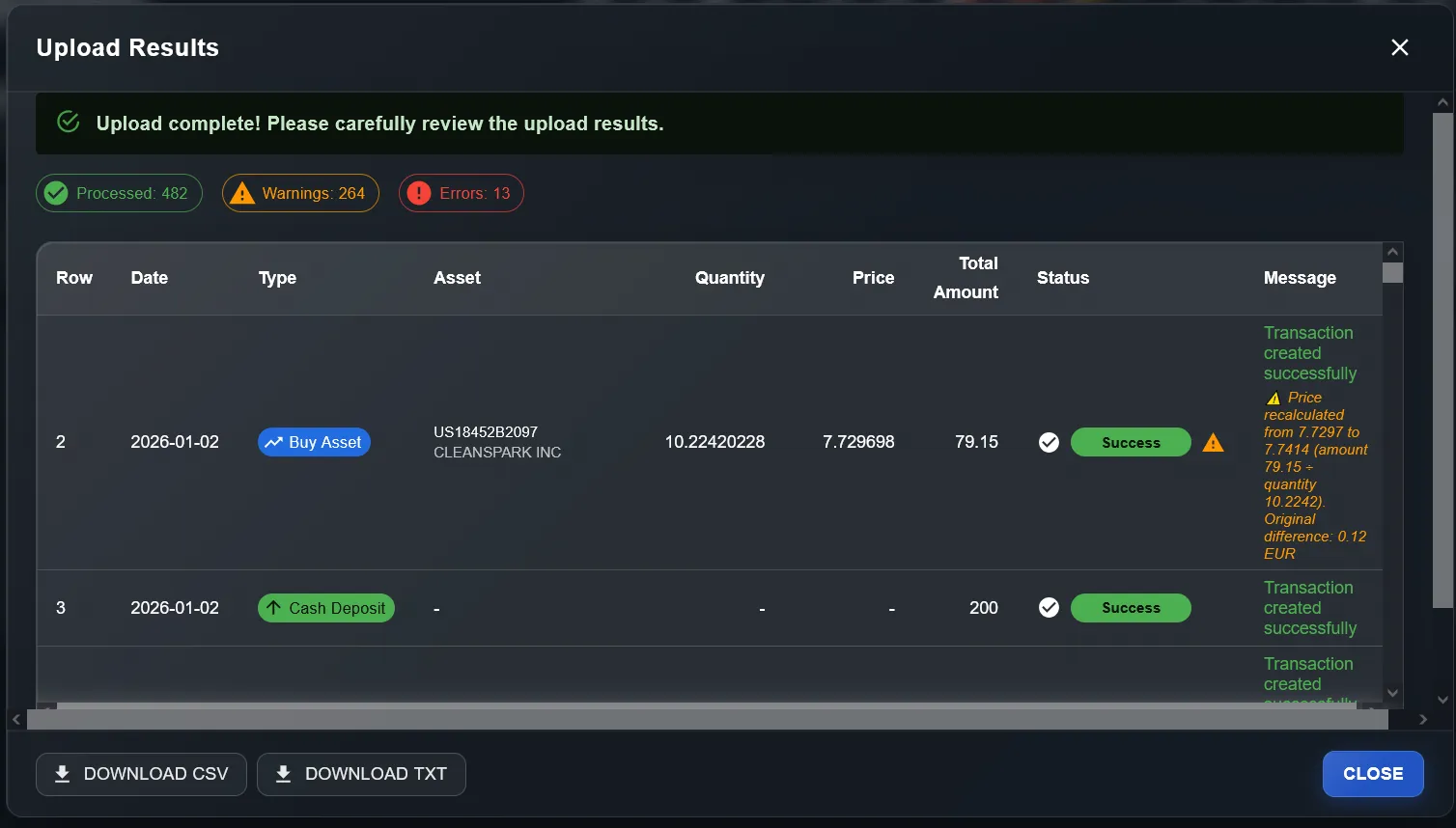
- DonkyCapital parses all transactions automatically — review the results and confirm
You can import multiple CSV files to cover different time periods. DonkyCapital deduplicates overlapping transactions automatically.
Step 3: Explore Your Portfolio Dashboard
Once your Trading 212 data is imported, your full portfolio is ready to analyse:
- All transactions appear in your DonkyCapital portfolio with correct dates and prices
- Add a benchmark (e.g. MSCI World ETF) to compare your real performance
- Enable the Dividend Calendar widget to track upcoming payments
- Import data from other brokers too — DonkyCapital consolidates everything in one Net Worth view
- Enable AI Portfolio Analysis to get personalised insights on risk and diversification
Privacy note: DonkyCapital never asks for your Trading 212 login credentials. All data is imported via CSV only — your broker account stays completely private.
Frequently Asked Questions: Trading 212 & DonkyCapital
Does DonkyCapital support Trading 212's CSV format?
Yes. DonkyCapital reads Trading 212's transaction history CSV directly, parsing buy and sell transactions, dividends, dates, quantities and execution prices automatically.
Can I import multiple Trading 212 CSV files?
Yes. You can upload multiple CSV files covering different date ranges. DonkyCapital merges them chronologically and removes duplicate transactions automatically.
Does DonkyCapital need my Trading 212 login?
No. DonkyCapital works entirely via CSV import — no Trading 212 username, password or API key is ever required. Your account remains completely private.
Can I combine Trading 212 with other brokers in DonkyCapital?
Yes. DonkyCapital is designed for multi-broker investors. Import from Trading 212 and any other supported broker — all consolidated into one unified portfolio view.
Does Trading 212 export include dividends?
Yes. The Trading 212 transaction history CSV includes dividend payments, so DonkyCapital can populate your dividend calendar and track income growth over time.
How often should I update my Trading 212 data in DonkyCapital?
Export a new CSV from Trading 212 whenever you want to sync recent transactions — monthly is sufficient for most investors. DonkyCapital will deduplicate any overlapping records.
Ready to analyse your Trading 212 portfolio professionally?
DonkyCapital offers a free plan. Import your Trading 212 transactions, add benchmarks and get AI-powered insights — all in one private dashboard.
Import Trading 212 to DonkyCapital FreeNo credit card. No Trading 212 login required.