
Customize sector, country & region
In a nutshell
- ▸Problem: many ETFs and funds appear as "Other" in sector and geography widgets because classification data is not automatically available.
- ▸Solution: DonkyCapital lets you manually define the sector and geographic breakdown of any asset.
- ▸Where: asset detail panel → SECTORS or GEOGRAPHY tab → CUSTOMIZE button.
- ▸Result: your widgets (Performance Heatmap, pie charts) instantly reflect the correct allocation.
When you add a bond ETF, a multi-asset fund, or an exotic asset to your portfolio, DonkyCapital widgets often display it as "Other" in sector or geography views. This is not a bug — it simply means classification data for that asset is not available from automatic sources.
The sector, country and region customization feature lets you fix this in seconds. The data you enter is private, visible only to you, and propagates immediately to all your portfolio widgets.
Table of contents
Why do assets appear as "Other" in widgets?
DonkyCapital automatically enriches each asset with sector, country and region data from standard financial sources. For stocks listed on major exchanges this works very well. For bond ETFs, pension funds, illiquid ETFs, OTC assets or alternative instruments, the data is often simply unavailable.
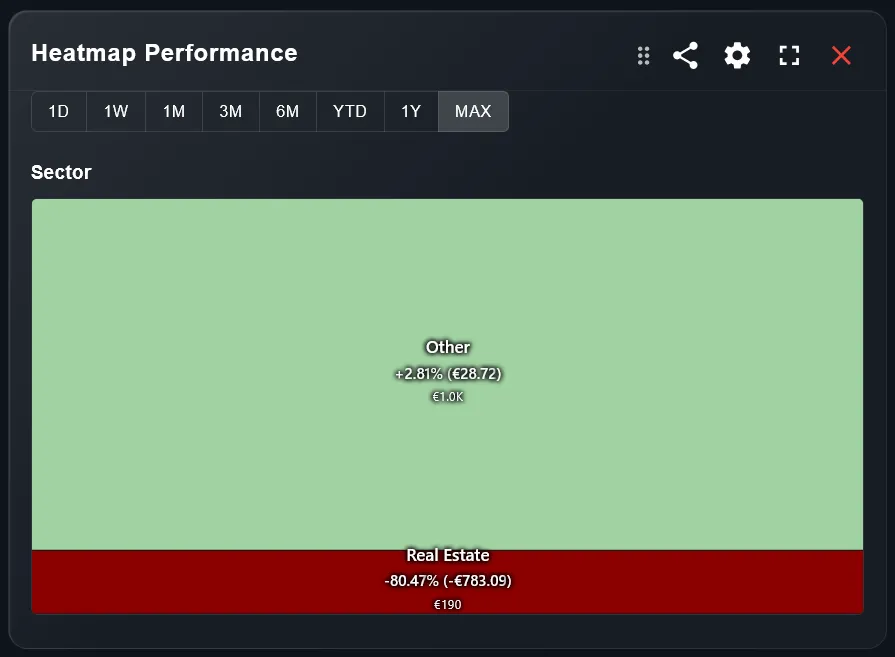
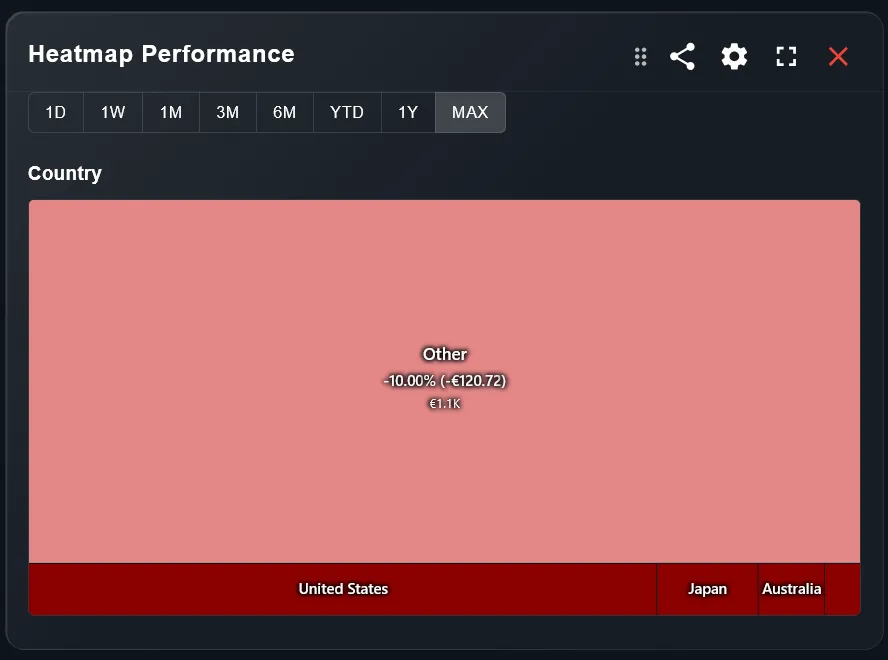
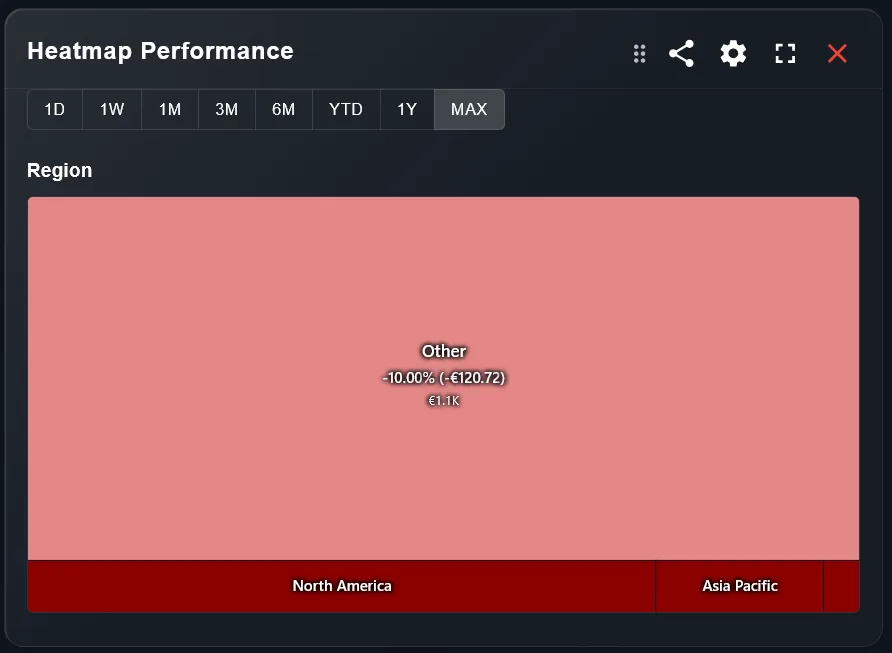
The result is that in every widget that groups by Sector, Country or Region — such as the Performance Heatmap, pie charts and treemaps — the asset appears as a single block labelled "Other". This makes it impossible to understand your portfolio's true sector or geographic exposure.
Sector — Other
Country — Other
Region — Other
What can you customize?
For each asset in your portfolio you can independently define three dimensions:
- ▸Sector — assign one or more sectors (e.g. Energy 75%, Financials 25%) to see your real sector exposure in widgets.
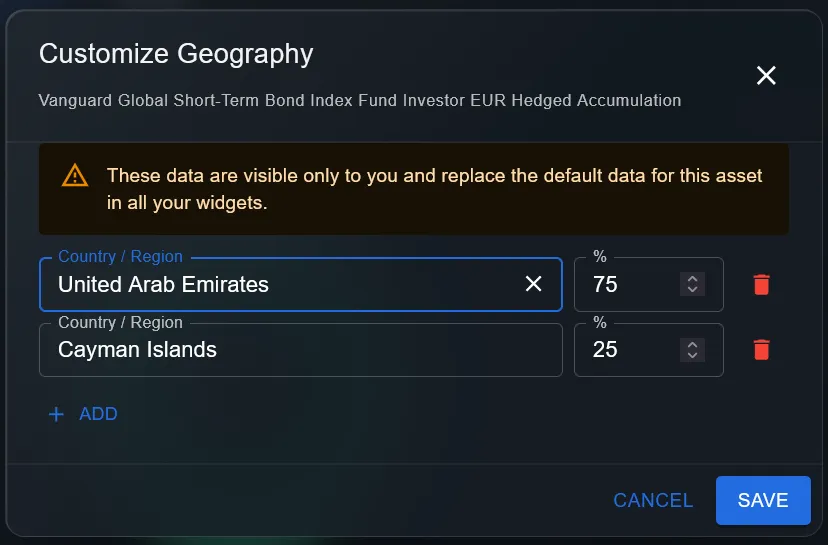
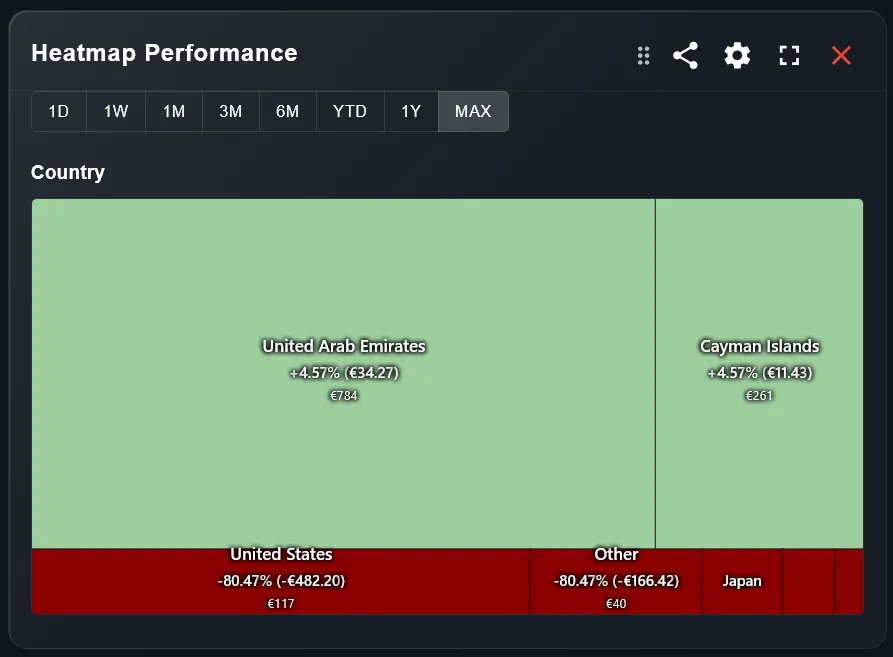
- ▸Country — specify the countries of the underlying investments (e.g. United Arab Emirates 75%, Cayman Islands 25%). Regions are calculated automatically from countries.
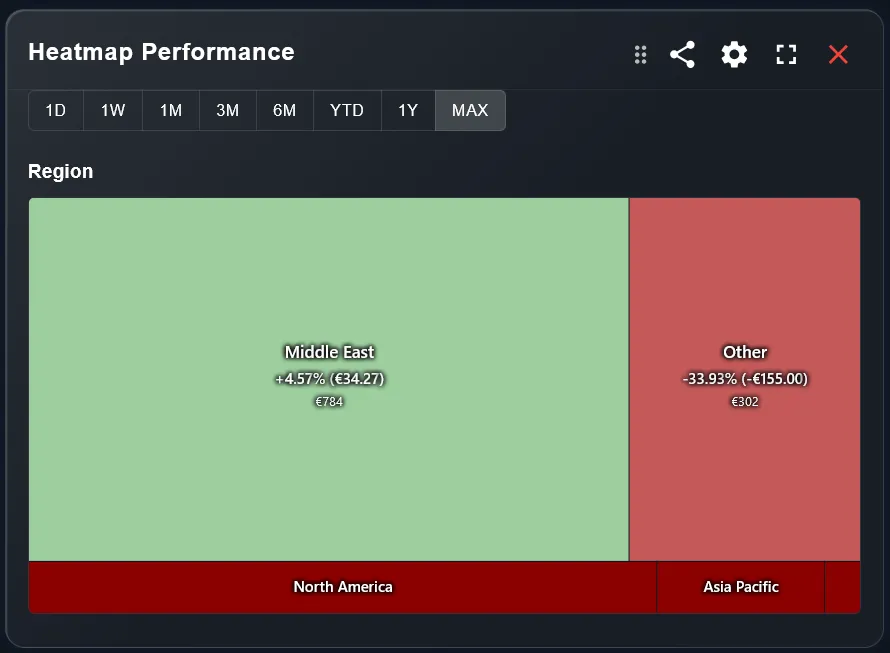
- ▸Region — as an alternative to country, you can directly define geographic regions (e.g. Middle East 75%, Other 25%).
How do you customize an asset's sector?
Open the detail panel of the asset you want to edit. At the top you'll find the OVERVIEW · SECTORS · GEOGRAPHY · PRICES tabs. Go to SECTORS: if data is unavailable or you want to change it, you'll see the CUSTOMIZE button in the top right. Click it to open the dialog.
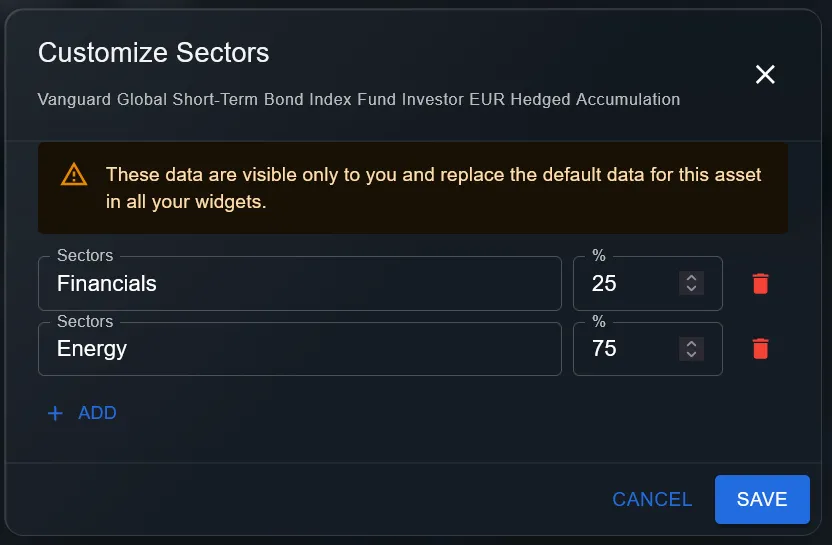
In the Customize Sectors dialog you can add as many sectors as needed. For each row, choose the sector name and the percentage. You do not need to reach 100%: any remaining allocation will automatically be assigned to Other. You can delete a row with the red icon. When satisfied, click SAVE.
Customize Sectors — dialog
Sectors tab — after saving
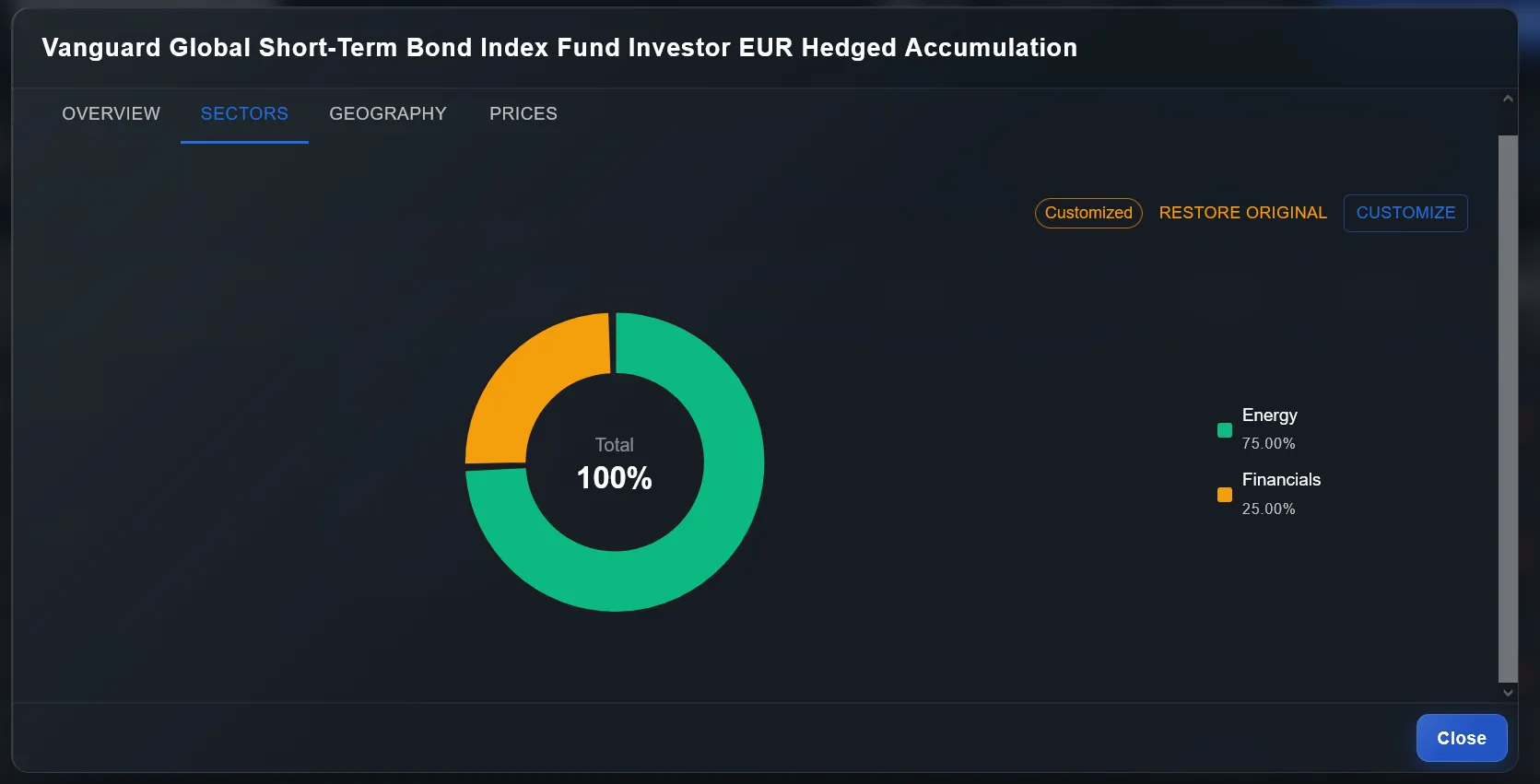
A "Customized" badge appears next to the button to remind you that you are viewing custom data. You can restore the original data at any time with "RESTORE ORIGINAL".
How do you customize an asset's country and region?
Go to the GEOGRAPHY tab in the asset detail panel. Here too you'll find the CUSTOMIZE button. The Customize Geography dialog works exactly like the sectors one: add country/region and percentage for each row.
You can enter specific countries (e.g. "United Arab Emirates") or macro-regions (e.g. "Middle East"). DonkyCapital automatically manages the hierarchy: if you enter a country like UAE, it is automatically grouped into the Middle East region in region-view widgets.
Customize Geography — dialog
Geography tab — after saving
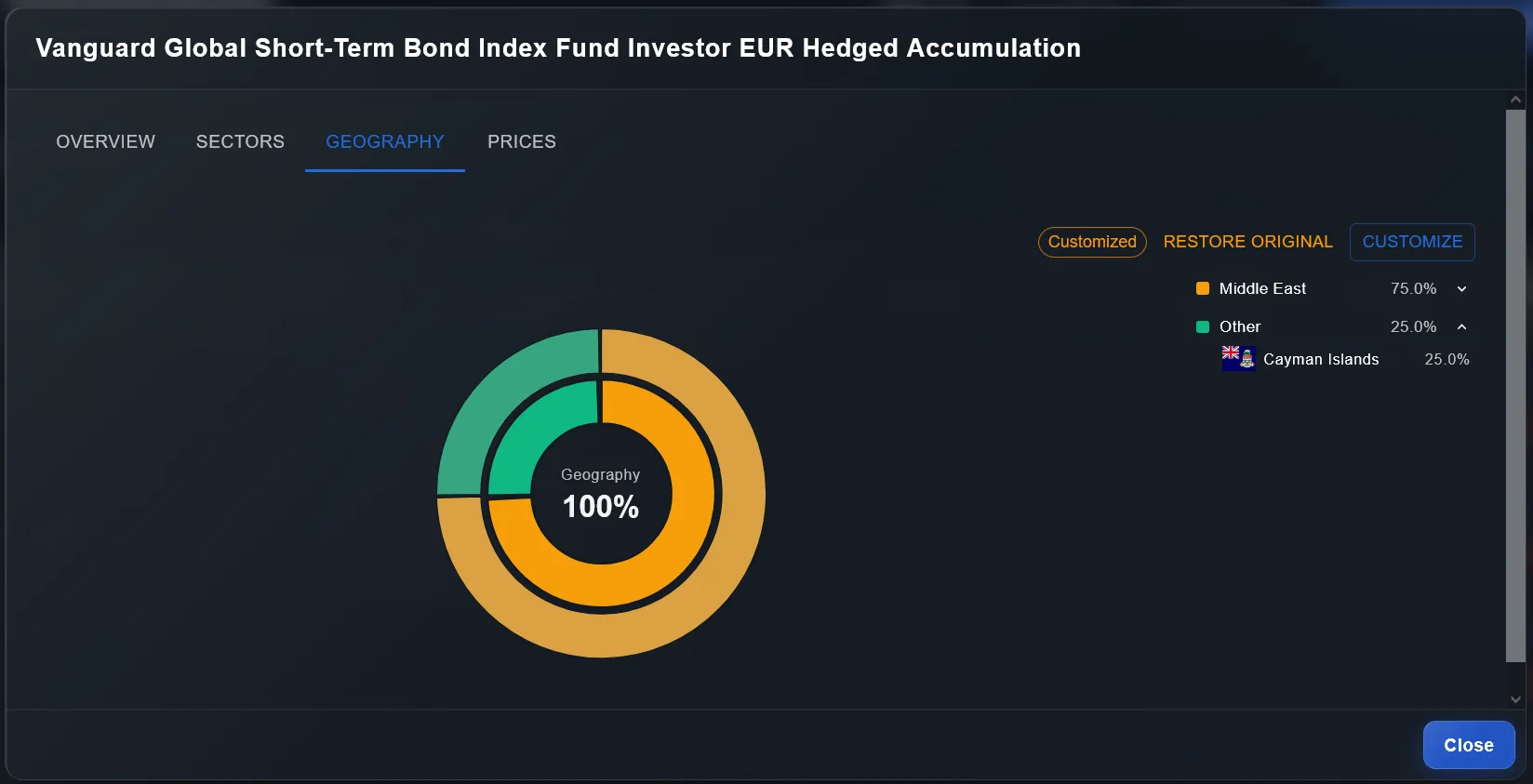
For geography too, the "Customized" badge indicates that the data has been customized by you.
How does it reflect in widgets?
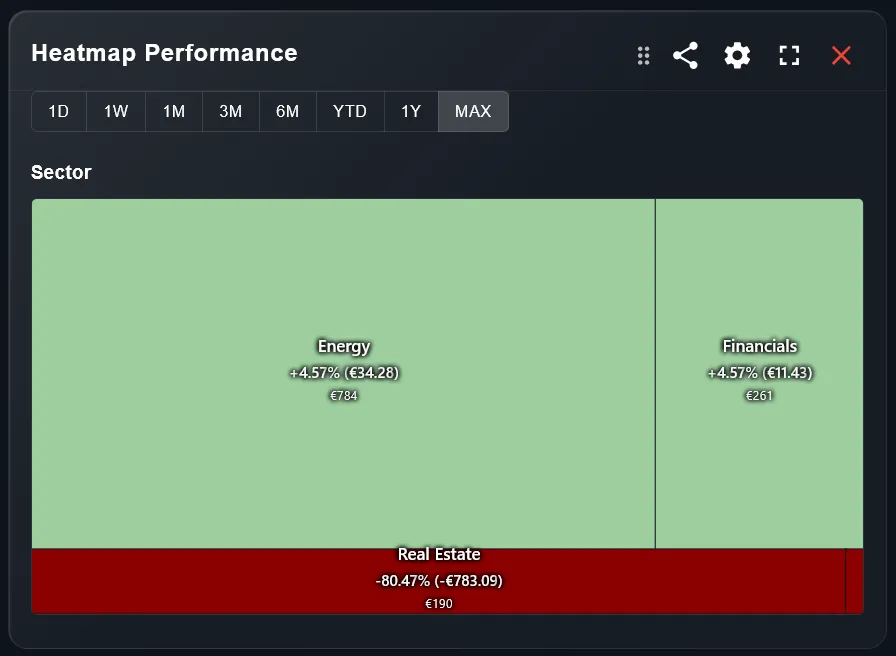
Once saved, all widgets that group by Sector, Country or Region — <strong>Performance Heatmap</strong>, pie charts, treemaps and more — immediately reflect the breakdown you defined instead of the generic "Other".
Sector
Before customization
After customization
Country
Before customization
After customization
Region
Before customization
After customization
Frequently asked questions
Is the data I enter visible to other users?
No. As indicated in the customization dialog, the data you enter is private and visible only to you. It is not shared with other users or external sources.
Can I customize any asset?
Yes, you can customize the sector and geography of any asset in your portfolio: stocks, ETFs, bonds, funds, crypto or unlisted assets.
Does the customization apply to all portfolios or just one?
The customization is tied to the asset, not to a specific portfolio. If you hold the same ETF in multiple portfolios, the customization applies to all of them automatically.
What happens if the original data becomes available?
Your customized data always takes precedence over automatic data. To revert to the original data, click "RESTORE ORIGINAL" in the Sectors or Geography tab.
Must the percentages add up to exactly 100%?
No, you can enter partial percentages. The remaining amount up to 100% is automatically assigned to "Other". This is useful when you only know the main sectors of an asset.
Can I mix countries and regions for the same asset?
Yes, you can mix specific countries and macro-regions in the same customization. DonkyCapital groups countries into their respective regions for widgets showing the regional view.
Do widgets update in real time after saving?
Yes, after clicking SAVE the widgets immediately reflect the new composition. There is no need to reload the page.
See your portfolio's true composition
Start customizing sector and geography for your assets to get a precise view of your real allocation.
Open DonkyCapitalLog in to DonkyCapital and open any asset detail panel to get started.